
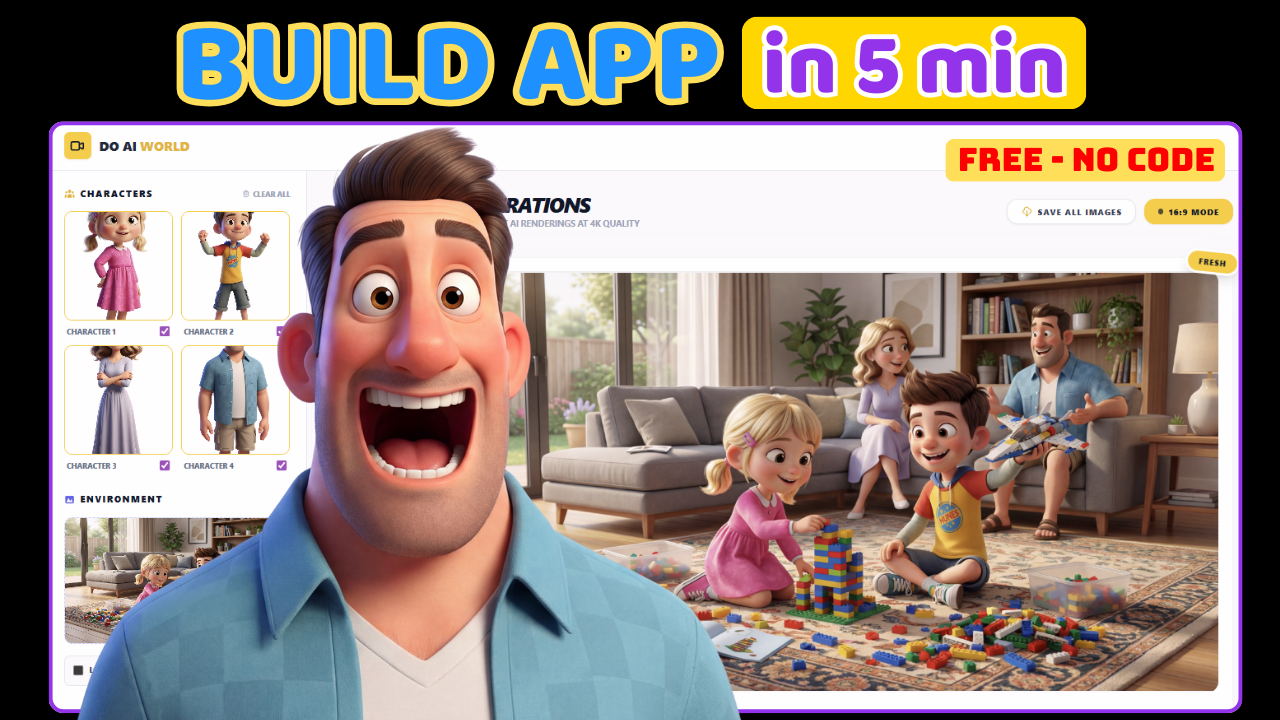
The days of waiting for developers to turn your ideas into apps are officially over. Thanks to recent advances in artificial intelligence, anyone can now build powerful AI applications in minutes—without writing a single line of code.
In this guide, you’ll learn how to create a character-consistent AI image generator using Google AI Studio and Google Gemini, completely free. Whether you’re a content creator, educator, marketer, or just curious about AI, this tutorial shows how fast and accessible AI app development has become.
Why Google AI Studio Is a Game Changer
Google AI Studio is a browser-based platform that allows users to experiment with and build applications powered by Google Gemini, one of Google’s most advanced AI models.
What makes Google AI Studio revolutionary is that:
-
You don’t need coding skills
-
You don’t need to install software
-
You can build usable AI apps in minutes
-
It offers free monthly usage
-
You can customize apps using natural language instructions
In short, Google AI Studio removes the technical barrier that traditionally kept people from building software.
What You’ll Build: A Character-Consistent Image Generator
In just a few minutes, you can create an AI app that:
-
Accepts reference character images
-
Keeps characters visually consistent across scenes
-
Generates high-resolution (4K) images
-
Maintains scene layout between generations
-
Produces images without watermarks
-
Works entirely in the browser
This type of app is extremely useful for:
-
Storytelling and children’s books
-
YouTube thumbnails
-
Comics and illustrations
-
Marketing visuals
-
Educational content
Step 1: Access Google AI Studio
To begin:
-
Open Google AI Studio
-
Sign in with your Google account
-
On the left panel, click “Build”
You’ll see a chat-style interface. This is where the magic happens.
Instead of writing code, you simply describe the app you want to build in plain English.
Step 2: Describe Your App Using Natural Language
In Google AI Studio, you can instruct the AI to build an app by describing:
-
The app name
-
The purpose of the app
-
The user interface layout
-
Inputs and outputs
-
How many images to generate
-
How reference images should be handled
Example Description
You might describe your app like this:
-
A left panel for uploading reference characters
-
Optional background reference uploads
-
A prompt input box
-
A right panel that displays generated images
-
The ability to generate two images per prompt
Once you paste your description into the chat and click Run, Google Gemini builds the app for you automatically.
Within a few minutes, you’ll see a functional interface that matches your request.
Step 3: Understanding Character Consistency
One of the most powerful features of this app is character consistency.
Instead of calling characters “the boy” or “the girl,” you label them as:
-
Character 1
-
Character 2
-
Character 3
-
Character 4
This structured naming helps Google Gemini track each character more accurately across different scenes.
Example Prompt
Character 1 and Character 2 are playing Lego in the living room.
With reference images uploaded, the AI generates sharp, consistent visuals where each character retains their appearance.
Step 4: Scene Consistency Across Images
After generating your first image, you can upload that image again as a scene reference.
Then, add new characters or actions:
Character 3 and Character 4 are sitting on the couch talking.
The result?
The original characters remain in the same positions, while new characters are added naturally to the scene.
This level of scene continuity is extremely impressive and valuable for storytelling workflows.
Step 5: Download High-Quality Images (No Watermarks)
Once images are generated:
-
You can download them instantly
-
There are no logos
-
No watermarks
-
No forced branding
This makes Google AI Studio especially appealing compared to many paid AI image tools.
Creating Reference Characters (Beginner Friendly)
If you don’t already have character images, you can easily create them.
Option 1: Use ChatGPT for Character Prompts
Ask ChatGPT to generate a character design prompt, for example:
Create a cartoon-style Little Red Riding Hood character, full body view, white background, high detail.
A white background and full-body framing help improve consistency.
Option 2: Generate Images with Google Tools
You can then use Google’s image generation tools (such as Whisk or Gemini image models) to create character references.
Repeat the process for each character and save the best image for each one.
Upload Reference Images into Your App
Once your reference images are ready:
-
Upload each image under “Reference Characters”
-
Assign them as Character 1, Character 2, etc.
-
Select which characters appear in each scene
This modular approach gives you precise control over image generation.
Step 6: Enable the Google Gemini API (Free)
To run the app fully, you’ll need a Google Gemini API key.
How to Get the API Key
-
Start the free trial (includes free monthly usage)
-
Navigate to APIs & Services
-
Enable Gemini API
-
Go to Credentials
-
Click Create Credentials → API Key
Google clearly states:
-
Free to sign up
-
Free to test
-
Free monthly usage included
Connect the API Key to Google AI Studio
Back in Google AI Studio:
-
Click Key (top right)
-
Create a new key
-
Import your Google Cloud project
-
Paste your API key
-
Click Done
Your app is now fully functional.
Improving Your App with “Fix” Commands
One of the most powerful features of Google AI Studio is iterative improvement.
If you want to change something, simply type:
fix create two images with a 16:9 aspect ratio
The AI updates the app automatically.
Fixing Errors
If an error occurs:
-
Type fix
-
Paste the error message
-
Run the command
Google Gemini analyzes the issue and corrects the app for you.
No debugging. No stack traces. No frustration.
Example Story Prompt
Here’s an example of a more advanced storytelling prompt:
Character 1 is trembling with fear while Character 2 is holding Character 1 close to protect them. Opposite them, Character 3 is grinning mischievously. Background is inside a wooden house.
The resulting images maintain character identity, emotion, and environment with remarkable accuracy.
Why This Matters for Creators and Businesses
Using Google AI Studio and Google Gemini, you can:
-
Save thousands on design costs
-
Prototype ideas instantly
-
Create visual stories without artists
-
Build internal AI tools for teams
-
Experiment without financial risk
What once took weeks now takes minutes.
SEO & Content Opportunities with Google AI Studio
From an SEO and content perspective, this technology unlocks massive opportunities:
-
Unique visual content for blogs
-
Custom illustrations for landing pages
-
Story-based marketing visuals
-
Faster content production cycles
Because you own the outputs, you can safely use them across websites, social media, and video platforms.
Final Thoughts
Google AI Studio proves that AI app development is no longer reserved for engineers. By combining natural language instructions with the power of Google Gemini, anyone can build functional, high-quality AI applications for free.
If you’ve ever had an idea for an app but didn’t know how to code, now is the time to start.
The future of software isn’t written—it’s described.
Visit my Youtube Channel for more tutorial like this: https://www.youtube.com/channel/UCdZNAZ9YZZU5u9o9HPAfUEA?sub_confirmation=1
