
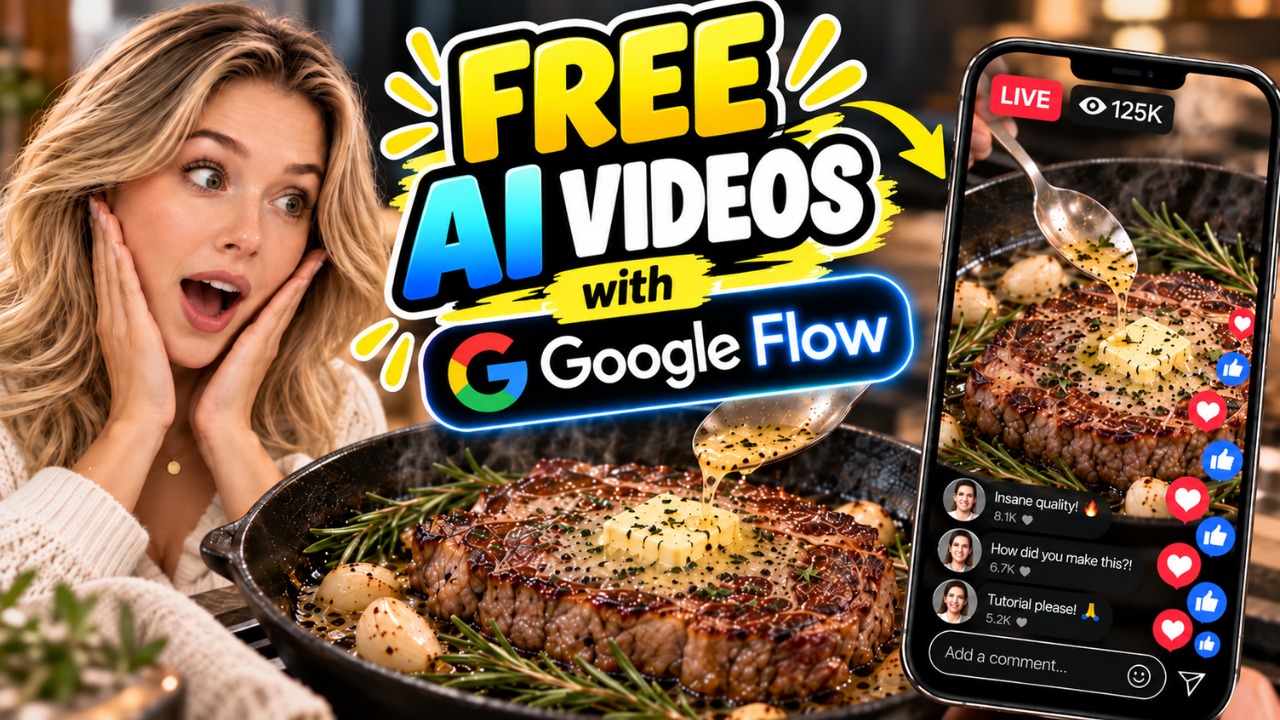
Creating high-quality, engaging video content used to require expensive equipment, specialized filming environments, and hours of complex editing. Today, generative AI has completely reshaped the media landscape. With modern tools, creators can turn simple text prompts into fully realized animated short films, social media reels, and marketing clips in minutes.
If you want to capitalize on current social media algorithms and produce content that stands out, mastering AI video generation is essential. In this comprehensive guide, we will walk you through a step-by-step workflow using two powerful free tools: ChatGPT for structured prompt engineering and Google Flow for cinematic rendering.
Whether you want to produce ultra-realistic live-action clips or high-performing Pixar style animations designed to become the next viral video, this step-by-step tutorial will show you exactly how to do it without spending a dime.
Why You Need AI Video Generation in Your Content Strategy
Short-form video platforms prioritize high visual retention, consistent narrative pacing, and visually striking imagery. Producing this level of content consistently through traditional filming methods can be slow and costly.
Using an AI-driven workflow offers several major advantages:
-
Zero Production Costs: You do not need cameras, lighting setups, or expensive studio rentals.
-
Rapid Prototyping: Turn an idea into a finished 10-second or 60-second video within minutes.
-
Character and Style Consistency: Maintain uniform art direction—such as a 3D animated look—across multiple scenes and frames.
-
Scalability: Test multiple creative concepts simultaneously to discover what drives maximum audience engagement.
By combining structured narrative prompts with Google Flow, you gain full creative control over scene progression, camera angles, and character design.
Tool Overview: ChatGPT and Google Flow
To achieve professional-quality results, you need a dual-tool strategy: one tool for scriptwriting and image generation, and another for rendering the actual motion video.
1. ChatGPT (The Script & Storyboard Engine)
ChatGPT acts as your creative director. By feeding it a structured “Master Prompt,” ChatGPT handles the complex creative heavy lifting:
-
Generating viral video concepts tailored to specific niches.
-
Breaking scripts down into precise frame-by-frame prompt sequences.
-
Generating consistent character sheets and storyboard concept images.
2. Google Flow (The AI Video Generator)
Google Flow is an advanced video generation platform that translates static storyboard images and detailed text prompts into smooth, realistic motion clips. Key features include:
-
Multi-Image Tagging: Reference custom character sheets and storyboards directly in your generation prompt.
-
Aspect Ratio Flexibility: Easily switch between 9:16 (vertical for Shorts, Reels, and TikTok) and 16:9 (horizontal for standard YouTube).
-
High-Performance Rendering Models: Options like Omni Flash deliver fast, fluid rendering at high resolutions.
Step-by-Step Guide: Creating Your First AI Video
Let’s walk through the exact process of taking a video idea from a blank page to a fully rendered final file.
+-------------------------------------------------------+
|                 CHATGPT WORKFLOW                      |
|                                                       |
|  [ Master Prompt ] --> [ 10 Video Ideas ]             |
|                               |                       |
|                               v                       |
|                      [ Select Concept ]               |
|                               |                       |
|                               v                       |
|  [ Character Sheet ] + [ Storyboard ] + [ Frame Prompts ]
+---------------------------+---------------------------+
                            |
                            v
+-------------------------------------------------------+
|               GOOGLE FLOW WORKFLOW                    |
|                                                       |
|  1. Upload Character Sheet & Storyboard               |
|  2. Tag @storyboard in Prompt Box                     |
|  3. Paste ChatGPT Frame-by-Frame Prompts              |
|  4. Configure Settings (9:16, 720p/1080p, Duration)   |
|  5. Click Generate                                    |
+-------------------------------------------------------+
Step 1: Generate Ideas and Storyboards in ChatGPT
To maintain full control over your story, start by setting up a dedicated workspace inside ChatGPT.
-
Load Your Master Prompt: Upload a document containing your master workflow prompt (or paste it directly into the chat) and type
Run. -
Select a Concept: ChatGPT will automatically return a list of 10 targeted video ideas. Choose one that fits your brand goals. For example: “How to make a restaurant-style steak at home.”
-
Define Duration and Settings: Specify your target video length (e.g., 10 seconds for a quick short/reel).
-
Define Your Character:
-
If you have an existing image, upload it so ChatGPT can reference it.
-
If you don’t have a character, ask ChatGPT to generate one from scratch.
-
Once you confirm these choices, ChatGPT will generate three core assets:
-
A Character Sheet: A reference image containing the subject from multiple angles to maintain visual consistency.
-
A Storyboard Image: A multi-panel panel layout outlining the visual progression of your scene from start to finish.
-
A Master Video Generation Prompt: A detailed text block describing the action frame-by-frame (from Frame 1 through the final frame).
Download both the character sheet and the storyboard image directly to your computer.
Step 2: Set Up Your Project in Google Flow
With your assets downloaded, head over to Google Flow to assemble and generate the final clip.
-
Create a New Project: Open Google Flow and start a new workflow canvas.
-
Upload Your Source Images: Import both your character sheet and storyboard image into the media library.
-
Construct the Generation Prompt:
-
Drag your storyboard image into the main prompt box (or click the three-dot menu on the image and choose Add to Prompt).
-
Tag the image explicitly by typing
@storyboard. -
Press
Shift + Enterto start a new line, then add your core directive:“Create a video from the storyboard above following the correct frame order.”
-
-
Paste Your Frame Prompts: Copy the complete frame-by-frame video prompt created by ChatGPT and paste it directly underneath your directive.
Step 3: Configure Settings & Render
Before clicking generate, optimize your render settings based on your target distribution channel:
| Setting Parameter | Recommended Value (Vertical Social) | Recommended Value (Horizontal Web) |
| Aspect Ratio | 9:16 (TikTok, Shorts, Reels) | 16:9 (YouTube, Web Banners) |
| Model | Omni Flash | Omni Flash / High Quality |
| Resolution | 720p or 1080p | 1080p |
| Duration | 10 Seconds | 10–30 Seconds |
Once configured, hit Generate. Within seconds, Google Flow will process your visual references and prompt data, merging them into a seamless, high-definition video complete with realistic lighting, smooth transitions, and dynamic motion.
Advanced Technique: Crafting High-Engagement Animated Content
While realistic food tutorials and commercial concepts perform extremely well, animated story-driven videos consistently earn some of the highest watch times and share rates online. Using a Pixar style visual format is one of the most effective ways to capture viewer attention instantly.
Here is how to adapt the core workflow to generate emotional, story-rich animated content designed to become a viral video.
Example Narrative Concept: The Abandoned Street Cat
Consider a classic emotional narrative: A young girl finds an abandoned orange cat on the street, brings it home, and cares for it.
1. Establish the Visual Style
When prompted by ChatGPT regarding character details, explicitly request your target art style:
“No existing character. Create a custom character in a 3D Pixar style.”
ChatGPT will generate a stylized 3D character sheet along with a matching storyboard panel.
       [ Character Sheet ]                [ Storyboard Image ]
+-------------------------------+   +-------------------------------+
|  3D Stylized Girl Character   |   | Panel 1: Finds Cat on Street  |
|  - Front View                 |   | Panel 2: Picks Up Cat         |
|  - Side Profile               |   | Panel 3: Brings Cat Home      |
|  - Neutral Outfit (No Bag)    |   | Panel 4: Cared for at Home    |
+-------------------------------+   +-------------------------------+
2. Refining Visual Details for Continuity
One common issue in AI image generation is visual clutter. For example, if the initial character sheet renders the girl wearing a backpack, that backpack might unnaturally persist in later indoor scenes (like eating dinner or sitting on a couch).
Fix continuity errors early by giving ChatGPT simple adjustment commands:
“The girl wasn’t wearing a backpack.”
ChatGPT will immediately re-render the character sheet with a neutral outfit, ensuring smooth visual consistency across indoor and outdoor scenes.
3. Rendering in Google Flow
Upload the clean 3D character reference and multi-panel storyboard to Google Flow. When building your prompt, ensure the art style is explicitly reiterated in the text box:
“@storyboard Create a 3D Pixar style animated video from the storyboard above following the correct frame order. [Paste detailed frame prompts from ChatGPT]”
The final output will deliver expressive facial animations, warm cinematic lighting, and smooth character motion—delivering cinematic quality directly from your browser.
Best Practices for AI Video Prompt Engineering
To get the best possible results out of Google Flow and ChatGPT, keep these core rules in mind:
1. Maintain Strict Continuity
-
Always use a character sheet when your story features a recurring human or animal subject.
-
Remove unnecessary accessories (like hats, bags, or glasses) from reference images unless they are essential to the plot.
2. Use Explicit Camera and Motion Control
When tweaking frame prompts, use clear cinematographic terms to guide the movement:
-
Camera Movement:
Pan left,Slow zoom in,Tracking shot,Over-the-shoulder view. -
Lighting Dynamics:
Golden hour sunlight,Soft ambient interior lighting,Dramatic volumetric rim light. -
Subject Action:
Slices restaurant-style steak,Gently lifts the cat,Turns toward the camera and smiles.
3. Match Aspect Ratios to Your Channel
-
9:16 Vertical: Optimized for mobile-first platforms (YouTube Shorts, Instagram Reels, TikTok).
-
16:9 Horizontal: Ideal for standard YouTube uploads, website headers, and presentation media.
Unlocking New Creative Possibilities
The combination of ChatGPT’s prompt structuring and Google Flow‘s rendering engine opens up endless opportunities for content creators, marketers, and storytellers:
-
Short-Form Storytelling: Build original animated mini-series and character-driven narratives.
-
Educational & How-To Clips: Create dynamic step-by-step visual guides for cooking, fitness, or DIY projects.
-
Product Concepts & Commercials: Turn static product ideas into animated promo videos for social media ads.
-
Social Media Reels: Produce high-converting, visually rich video clips that stand out in crowded feeds.
By mastering this free two-step workflow, you can rapidly create, test, and publish professional-grade video content—saving time and money while scaling your digital presence.
Frequently Asked Questions (FAQ)
Is Google Flow completely free to use?
Yes, Google Flow offers free access options that allow creators to generate high-quality video clips without upfront subscription costs.
How do I ensure my characters look identical in every frame?
By uploading a multi-angle character sheet alongside your storyboard and referencing both images in your prompt, the AI uses the exact visual features across every generated frame.
Can I generate videos longer than 10 seconds?
Yes. You can generate multiple 10-second scene segments using this workflow and stitch them together using any standard video editor (such as CapCut, Premiere Pro, or DaVinci Resolve).
Why is specifying art style (like Pixar style) important?
Explicitly naming an art style helps the AI model choose consistent shading, textures, lighting, and camera rendering, preventing sudden shifts in visual quality between scenes.
Secret Workflow Behind Realistic AI Influencers (OpenArt AI)
