
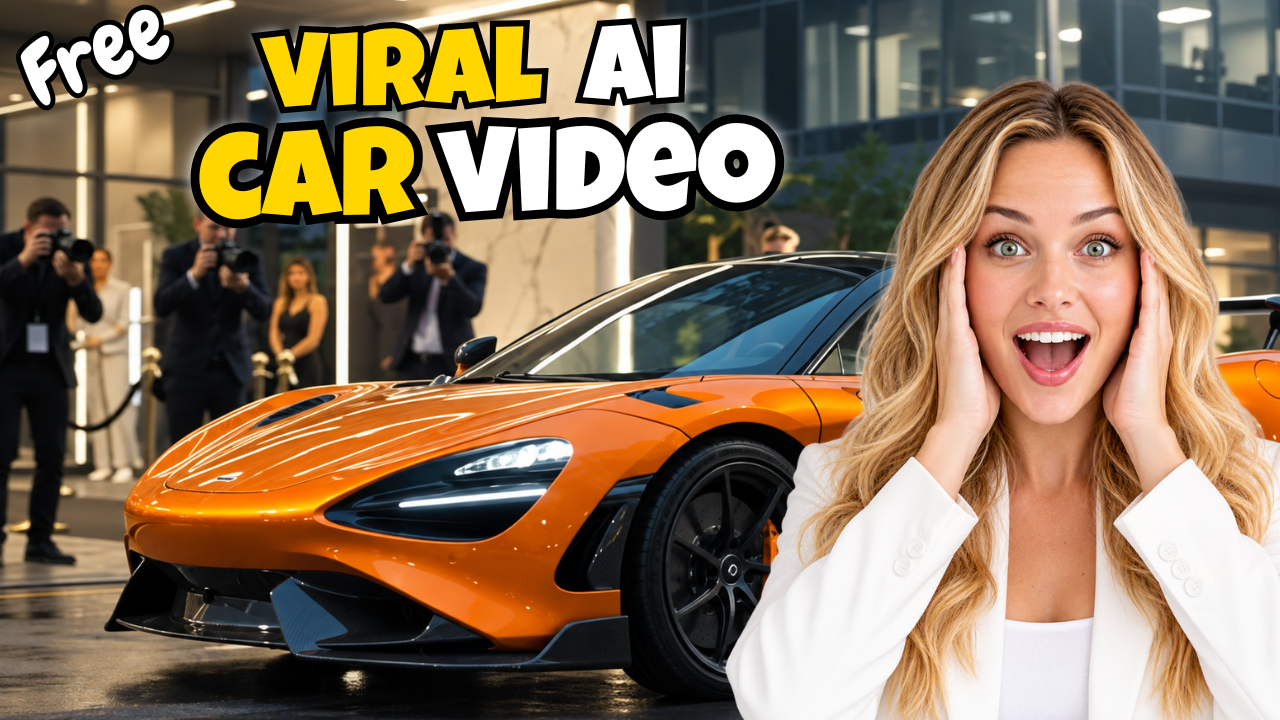
AI-generated car videos are becoming one of the most exciting trends on social media. From futuristic supercars and miniature vehicle builds to insane transformations and cinematic customization scenes, creators are finding new ways to turn simple ideas into highly engaging videos.
The best part? You don’t need an expensive camera, a real supercar, a professional studio, or a large production team.
With tools like Google Flow, ChatGPT, and a video editor such as CapCut, you can build your own Viral AI Car videos with a surprisingly simple workflow.
In this guide, I’ll walk you through the complete process—from coming up with a viral car concept to generating multiple video clips, maintaining visual continuity, editing the final result, and preparing it for YouTube Shorts, TikTok, or Instagram Reels.
Even better, you can get started with a Free AI video workflow without investing in expensive production equipment.
Why Viral AI Car Videos Are Exploding
Car content has always performed well on social media.
People love watching supercars, futuristic vehicles, extreme modifications, luxury interiors, racing scenes, and impossible automotive concepts. AI takes this interest to another level by allowing creators to produce vehicles that would be extremely difficult or even impossible to build in real life.
Imagine a tiny sports car being completely customized inside a miniature workshop.
Or a futuristic vehicle changing its body design, wheels, lighting, interior, and performance parts in a cinematic sequence.
With traditional video production, creating something like this could require:
- Expensive vehicles
- A physical location
- Professional cameras
- Lighting equipment
- Actors or models
- Automotive specialists
- Video editors
- Hours of production time
AI dramatically reduces those requirements.
Instead of physically building the scene, you can describe what you want and let AI generate the visuals.
This creates a huge opportunity for creators who want to experiment with Viral AI Car content without a massive production budget.
What You Need to Create AI Car Videos
The workflow is relatively simple. You can use several AI tools together, with each tool handling a different part of the process.
For this workflow, you’ll need:
- ChatGPT for generating ideas and video prompts
- Google Flow for generating the AI video
- CapCut or another video editor for editing
- Music from a copyright-safe source
- A few creative ideas for your car concept
You don’t necessarily need to use ChatGPT. Gemini, Claude, or other AI chatbots can also help generate prompts.
The important thing is having a detailed prompt that tells the video model exactly what should happen.
Step 1: Generate a Viral AI Car Concept
Before opening Google Flow, you need a strong concept.
This is where an AI chatbot can save you a lot of time.
Instead of spending an hour trying to invent an interesting automotive concept, you can ask AI to generate multiple ideas based on current social-media trends.
For example, you could ask it to create 10 miniature car concepts.
Each concept can include:
- Vehicle type
- Color
- Customization style
- Design direction
- Visual hook
- Transformation idea
- Environment
- Camera style
You might get ideas such as:
Concept 1: A miniature black supercar receiving a futuristic neon upgrade.
Concept 2: A luxury sports car transformed inside a high-tech automotive laboratory.
Concept 3: A tiny electric hypercar receiving extreme performance modifications.
Concept 4: A futuristic red supercar customized for a nighttime music event.
The goal isn’t simply to create a beautiful car.
The goal is to create a concept that makes someone stop scrolling.
That’s one of the most important principles behind successful Viral AI Car videos.
Step 2: Turn the Idea Into a Complete Video Prompt
Once you choose your favorite concept, ask your AI chatbot to expand it into a complete video prompt.
This is extremely important.
A short prompt like:
“Create a video of a futuristic sports car being customized.”
may produce an interesting result, but it doesn’t give the AI enough information to maintain consistency.
A much better prompt describes the entire sequence.
For example, your prompt can specify:
- The exact car design
- Body shape
- Primary color
- Wheel design
- Studio environment
- Lighting
- Camera movement
- Workers’ hands
- Customization steps
- Parts being installed
- Final reveal
- Driving sequence
The prompt should also emphasize consistency.
You want the same vehicle to remain recognizable throughout the entire sequence.
If you don’t provide enough detail, AI video generators may randomly change the car’s color, body shape, wheels, proportions, or environment.
For a multi-scene Viral AI Car video, consistency is critical.
Step 3: Open Google Flow
Now it’s time to generate the video.
Open Google Flow and create a new project.
Google Flow is particularly interesting for AI video creators because it allows you to build cinematic sequences and work with reference images and frames.
Depending on your account and the current Google Flow offering, available models, credits, and features may change over time. So always check the current limits displayed inside your Google Flow account.
For a Free workflow, pay close attention to how many credits each generation requires.
AI video generation can consume credits quickly, especially if you’re creating multiple versions.
Step 4: Choose Your Video Settings
After creating your project, paste your complete video prompt into Google Flow.
Then select the appropriate video generation mode and settings.
For short-form content, a vertical format is usually the best choice.
Use:
9:16
This format works well for:
- YouTube Shorts
- TikTok
- Instagram Reels
If you’re creating a traditional YouTube video, you may prefer:
16:9
Next, select the available video model that fits your project and choose an appropriate duration.
For short AI clips, a 10-second generation can be enough to create one section of your story.
The key is not trying to generate your entire video in one massive prompt.
Instead, think of your project as a sequence of connected clips.
Step 5: Generate the First AI Car Video
Once your settings are ready, start the generation.
Depending on the complexity of your prompt and the current Google Flow system, the generation may take some time.
When the video is ready, preview it carefully.
Don’t immediately download it.
First, check the most important elements.
Is the car consistent?
Make sure the vehicle maintains the same:
- Color
- Shape
- Proportions
- Wheels
- Body design
- Major customization elements
Does the customization process make sense?
The transition between modifications should feel natural.
For example, you might show:
A clean miniature car → wheels being replaced → performance parts installed → body modifications → lighting upgrade → final reveal.
Does the camera movement look cinematic?
Look for interesting camera angles such as:
- Close-up shots
- Low-angle automotive shots
- Tracking shots
- Wide studio shots
- Detail shots
- Final hero shots
If the first generation doesn’t look right, don’t worry.
AI video generation is an iterative process.
Adjust your prompt and try again.
Step 6: Use the Continuity Workflow for Longer Videos
This is one of the most useful techniques for creating longer AI videos.
Instead of asking Google Flow to generate a 30-second sequence in one shot, create several shorter clips and connect them together.
For example:
Video 1: The customized car finishes inside the studio.
Video 2: The car leaves the studio and drives through the city.
Video 3: The car arrives at a nighttime event.
Video 4: A character exits the vehicle.
The challenge is making Video 2 look like it actually continues from Video 1.
This is where the saved-frame workflow becomes useful.
Step 7: Save the Final Frame
After generating your first video, move to the final frame.
Find a frame where the car is clearly visible and the composition is close to what you want for the next scene.
Save that frame.
This image can then be used as a visual reference for your next generation.
The idea is simple:
Video 1 → Final Frame → Video 2
Instead of starting the second clip from scratch, you’re giving the AI a visual reference from the previous scene.
This can help maintain:
- Vehicle identity
- Color
- Position
- Environment
- Camera perspective
- Overall visual style
It doesn’t guarantee perfect continuity, but it can significantly improve the transition between clips.
Step 8: Generate the Next Scene in Google Flow
Now take your saved frame and use it as the reference for the next video.
Then add a new prompt describing what happens next.
For example:
The same customized vehicle continues driving from the previous scene and arrives at a futuristic nighttime event. Maintain the exact vehicle design, body shape, color, wheels, proportions, and overall visual identity from the reference frame.
The most important phrase here is the same vehicle.
Your prompt should clearly tell the AI that you’re continuing an existing sequence rather than creating a completely new car.
Generate the second clip and compare it with the first one.
Look carefully for sudden changes.
If the vehicle suddenly changes color or shape, you can regenerate the clip with a stronger continuity prompt.
Step 9: Combine Your AI Video Clips
Once you have several clips, it’s time to assemble them.
CapCut is a convenient option for beginners, but you can use any editor you prefer.
Create a new project and import your generated videos.
Place them on the timeline in the correct order.
For example:
Scene 1 → Scene 2 → Scene 3 → Final Reveal
Watch the entire sequence from beginning to end.
This is where you’ll notice problems that may not be obvious when watching each clip separately.
You may find that:
- A scene is too long
- A transition feels awkward
- A shot repeats itself
- The pacing is too slow
- A generated frame looks strange
- The music doesn’t match the action
Don’t be afraid to trim aggressively.
Short-form content usually benefits from strong pacing.
Step 10: Add Music and Sound Effects
Music can completely change how an AI car video feels.
A futuristic car customization video might work well with energetic electronic music.
A luxury car reveal might benefit from cinematic music.
A miniature workshop video could use subtle mechanical or ASMR-style sounds.
If you’re planning to monetize your YouTube channel, be careful about music licensing.
A safer option is to use music from a legitimate copyright-safe library, such as the YouTube Audio Library, while checking the specific licensing requirements for each track.
You can also lower the music volume so it doesn’t overpower the original sounds from your AI-generated video.
Small editing decisions like this can make the final result feel much more professional.
Step 11: Improve the Pacing
One simple editing technique is to synchronize your cuts with the rhythm of the music.
Instead of randomly cutting between scenes, listen to the melody.
When the musical phrase changes, consider using that moment to transition to another shot.
For example:
Close-up → beat → wheel installation → beat → engine modification → beat → final reveal
This creates a stronger relationship between the visuals and audio.
For Viral AI Car videos, pacing matters because viewers can scroll away at any moment.
Your first few seconds should immediately communicate what makes the video interesting.
Step 12: Create a Strong Thumbnail
If you’re publishing your AI car video on YouTube, don’t overlook the thumbnail.
A great video can still receive fewer clicks if the thumbnail doesn’t communicate the concept clearly.
Choose a frame with:
- A recognizable car
- Strong visual contrast
- A clear focal point
- An interesting transformation
- Minimal clutter
For example, you could show the car before and after customization.
Or use a dramatic close-up of the finished vehicle.
Keep your thumbnail text short.
Instead of:
“How I Created This Amazing AI Generated Miniature Car Video”
try something much shorter, such as:
“AI CAR MAGIC”
or:
“MADE WITH AI”
The viewer should understand the concept almost instantly.
Step 13: Export Your Final Video
Once you’re happy with the edit, export the video.
For YouTube, 1080p is a good starting point.
If your source footage and workflow support higher resolution, you can consider exporting at a higher resolution.
Before uploading, watch the exported file one final time.
Check:
- Video quality
- Audio volume
- Music licensing
- Transitions
- Spelling
- Thumbnail
- Aspect ratio
- Watermarks
- Overall pacing
Then your Viral AI Car video is ready to publish.
How to Make Your Viral AI Car Videos More Successful
Generating an AI video is only the beginning.
If you want your content to perform well, focus on the idea and presentation—not just the technology.
1. Start with a strong visual hook
The viewer should immediately see something unusual.
For example:
“What if a $2 million supercar was built inside a miniature garage?”
That’s much more intriguing than simply showing a generic AI-generated car.
2. Create impossible concepts
AI gives you the opportunity to create things that don’t exist.
Think about:
- Flying supercars
- Futuristic transformations
- Miniature automotive factories
- AI-built hypercars
- Robot cars
- Underwater vehicles
- Luxury cars from the future
- Extreme customization
3. Maintain visual consistency
A beautiful first scene isn’t enough.
The entire sequence needs to feel like one coherent story.
Use reference frames whenever possible and repeat important vehicle characteristics in your prompts.
4. Experiment with multiple formats
Don’t only create YouTube Shorts.
You can repurpose the same concept for:
- TikTok
- Instagram Reels
- YouTube
A single AI car concept can potentially become multiple pieces of content.
Can You Really Create Viral AI Car Videos for Free?
You can get started with a Free workflow, but it’s important to understand that “free” doesn’t necessarily mean unlimited.
AI platforms often use credit systems, and the available number of free generations can change.
The best strategy is to minimize unnecessary generations.
Plan your concept before generating.
Use AI to develop the prompt.
Generate short clips.
Review each result carefully.
Only regenerate scenes that actually need improvement.
This approach helps you make the most of your available Google Flow credits.
Final Thoughts
The rise of Viral AI Car content shows how quickly AI is changing video creation.
You no longer need access to a real supercar or a professional automotive studio to experiment with cinematic car content.
With Google Flow, an AI chatbot, and a simple video editor, you can build an entire workflow around AI-generated vehicles.
The most powerful part isn’t simply generating one impressive clip.
It’s learning how to connect multiple clips together, maintain visual consistency, create strong hooks, synchronize your editing with music, and package the final video in a way that makes people want to click and keep watching.
And because you can start with a Free AI workflow, it’s an accessible way for beginners to experiment with AI video creation without committing to expensive equipment or production costs.
If you’re interested in AI video creation, Viral AI Car content is definitely a trend worth experimenting with. Start with one creative concept, turn it into a detailed prompt, generate your first scene in Google Flow, use saved frames for continuity, and then polish everything in your favorite video editor.
You might be surprised by what you can create with AI.
