
Introduction
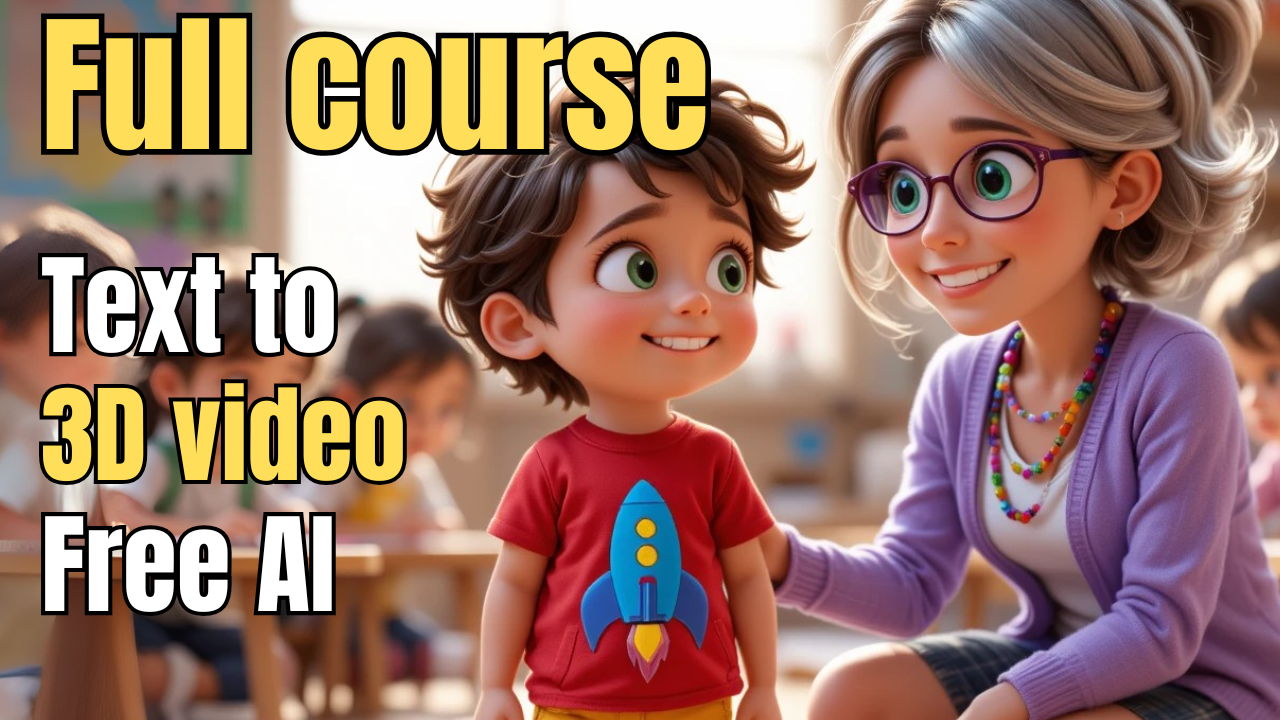
In today’s AI-powered world, creating professional 3D animated videos is no longer reserved for big studios with massive budgets. With just your computer, a few Free AI tools, and a little creativity, you can transform a simple idea into a complete 3D animation—featuring consistent characters, smooth motion, catchy music, and meaningful storytelling.
If you’ve ever wondered:
-
How can I create 3D animated videos from text?
-
Are there free AI tools that let me handle everything from scriptwriting to visuals, music, and editing?
-
Can I make content similar to those kids’ YouTube channels that rack up billions of views without hiring a production team?
The answer is yes.
In this complete guide, based on the video “Free AI Tools to Create 3D Animated Videos from Text | Complete Guide”, you’ll learn step by step how to produce your own professional-looking animated video without spending a dime.
Why Use AI to Create 3D Animation?
Traditionally, producing a 3D animated video required: Scriptwriters to draft the story, Animators to design and move characters, Music producers to compose and record soundtracks, Editors to piece everything together. This process was time-consuming, expensive, and difficult to manage.
Now, thanks to AI tools, you can do it all yourself:
✅ Use ChatGPT for scripts, lyrics, and storyboards
✅ Generate high-quality images with Leonardo AI or Piclumen AI
✅ Animate still images with Runway AI
✅ Compose music with Suno AI
✅ Edit and finalize your video using CapCut
And the best part? Most of these tools have free versions that allow you to get started instantly.
Step-by-Step Guide: How to Create 3D Animation Using Free AI Tools
Step 1: Come Up With a Video Idea
Start with ChatGPT. Type in a simple prompt like:
Within seconds, you’ll receive multiple creative concepts. For example: “Growth mindset and learning from mistakes.”
This is an excellent theme because parents love videos that teach kids resilience, confidence, and emotional intelligence—valuable lessons wrapped in fun storytelling.
Step 2: Write a Catchy Song & Script
Kids respond best to short, playful lyrics and easy rhymes.
Still using ChatGPT, ask:
In seconds, you’ll have a ready-to-use song along with a script that can be adapted for your animation.
Step 3: Build a Storyboard
A great video needs clear structure. Break your video into around 20 short scenes aligned with your song lyrics.
Prompt example for ChatGPT:
This storyboard becomes your visual roadmap for the animation.
Step 4: Generate Image Prompts
Now, turn your storyboard into prompts for AI image generation.
Example:
👉 Make sure to set the aspect ratio to 16:9, which is perfect for YouTube videos.
Step 5: Design Consistent Characters
Consistency is key. Without clear descriptions, AI tools may generate characters that look different in every scene.
Here’s how to fix it:
Write a detailed character description and use it in every prompt.
Save this description in a document and reuse it to maintain consistency throughout your video.
Step 6: Generate 3D Animation Images with Piclumen AI
Now that you have your storyboard and consistent character descriptions, it’s time to generate your visuals with Piclumen AI. This tool is simple, beginner-friendly, and free to use.
Here’s how to do it step by step:
-
-
Go to Piclumen AI
-
Log in with Google, Microsoft, or email (Google is usually the fastest option).
-
-
Start a new project
-
Click the “Create” button on the dashboard.
-
Select Image Generation mode.
-
-
Input your scene prompt
-
Copy one of your storyboard scene descriptions from ChatGPT.
-
Paste it into the prompt box.
Example:
-
-
Add your character description
-
Right after the scene prompt, paste in the character description you refined earlier.
-
This ensures character consistency across all generated images.
Example:
-
-
Set aspect ratio
-
Choose 16:9 ratio to make your images perfect for YouTube videos.
-
-
Generate and refine
-
Click Generate.
-
If the result isn’t exactly what you envisioned, simply click Rerun to regenerate with the same prompt.
-
Save the best version by hovering over the image and clicking the download arrow.
-
-
Repeat for all scenes
-
Follow this process for every storyboard scene until you have a full set of consistent, high-quality 3D images.
-
👉 Pro tip: Keep all your generated images organized in a folder named by scene number (e.g., “Scene 1,” “Scene 2”) so editing later becomes much smoother.
After this step, you’ll have a complete collection of consistent 3D images. Next, you’ll animate them using Runway AI.
Step 7: Animate Your Images (Runway AI)
Once your images are ready, use Runway AI to bring them to life.
-
Upload your image
-
Type a motion prompt (e.g., “The boy waves his hand and smiles”)
-
Generate and download the animated clip
Repeat the process for each scene until your full story is animated.
Step 8: Create Music & Soundtrack (Suno AI)
Music makes your animation engaging. With Suno AI, you can create original songs in seconds:
-
Paste your lyrics from ChatGPT
-
Select a style, such as “nursery rhyme singalong”
-
Generate two tracks and choose your favorite
Don’t hesitate to generate multiple versions until you find the perfect fit. Then, download the track.
Step 9: Edit and Finalize Your Video (CapCut)
Finally, open CapCut to bring everything together:
-
Import your animated clips and background music
-
Arrange scenes according to your storyboard
-
Add transitions, captions, and fun effects
-
Use auto-captions to display song lyrics on screen
-
Export your video in 4K resolution for the best quality
And just like that, your professional-looking 3D animation is ready to upload.
Benefits of Using AI for 3D Animation
-
Cost-effective: No need to hire a production team
-
Fast turnaround: Go from idea to finished video in hours, not weeks
-
Beginner-friendly: No technical background required
-
Creative freedom: Experiment with different genres and ideas
-
Monetization potential: Kids’ animation channels attract billions of views, generating huge ad revenue
The Best Free AI Tools for 3D Animation
Here’s a recap of the AI tools covered in this guide:
-
ChatGPT – Generate scripts, lyrics, and storyboards
-
Leonardo AI / Piclmen AI – Create high-quality 3D images
-
Runway AI – Animate still images into video clips
-
Suno AI – Compose songs and soundtracks
-
CapCut – Video editing, effects, captions, and export
With these free AI tools, anyone can create 3D animated videos from text without advanced skills.
Conclusion
The combination of 3D Animation and Free AI tools has revolutionized content creation. Today, anyone with an idea can become an animator—without a studio, expensive software, or a big team.
Whether you want to:
-
Launch a kids’ YouTube channel
-
Produce educational animations
-
Create engaging ads or explainer videos
-
Or simply explore your creativity
AI makes it possible.
So, why wait? Start experimenting with these tools today, and share your first 3D animated video with the world.
SEO Keywords Used:
-
3D Animation
-
Free AI Tools
-
AI tools to create 3D animated videos from text
-
Create animated videos free
-
3D animated kids videos
