
In the rapidly evolving landscape of search engine optimization (SEO) and digital marketing, efficiency isn’t just an advantage—it is the baseline for survival. As search engines transition into AI-powered answer engines, professionals must adapt by leveraging advanced automation tools.
Google’s ecosystem has recently introduced two revolutionary features within its Gemini platform: Google Canvas and Gemini Gems. For SEO specialists, content creators, and digital entrepreneurs, these tools represent a monumental paradigm shift. They transform a standard, linear AI chatbot into a dynamic, contextual, and interactive workstation.
This comprehensive guide delivers an enterprise-grade blueprint to mastering Google Canvas and Gemini Gems, ensuring you can automate redundant operations, visualize complex data datasets, and scale your content workflows efficiently.
Part 1: Deconstructing Gemini Gems – Your Custom AI Workforce
The Operational Challenge of Standard Prompting
Every SEO and digital marketer understands the fatigue of repetitive prompting. Every time you open a new chat session to draft a meta description, audit content against brand guidelines, or respond to customer inquiries, you face a cold-start problem. You must re-introduce your brand persona, re-upload your compliance policies, and re-explain your formatting constraints. This operational drag drains billable hours.
Gemini Gems completely eliminates this inefficiency. A “Gem” is a persistent, custom-trained iteration of the Gemini model tailored to execute a single, highly specialized task with absolute consistency. Instead of engineering complex prompts for every single session, you anchor your parameters once, allowing you to execute tasks via a simple copy-and-paste workflow.
The Four-Part Enterprise Prompting Framework
To construct a high-performance Gemini Gem that avoids algorithmic drift, you must utilize a structured semantic framework. When configuring your custom Gem instructions, segment your input into these four core pillars:
-
Persona: Define the exact professional identity, tone of voice, and industry authority the Gem must embody.
-
Task: Establish a crystalline definition of the primary objective the Gem is engineered to execute.
-
Context: Supply the comprehensive background data, edge cases, and organizational nuances required for precise execution.
-
Format: Outline the precise structural layout, syntax, markdown, and sections required in the final output.
       [ 1. PERSONA ]  --> Define Voice, Authority, and Role
              │
              ▼
       [ 2.  TASK   ]  --> Isolate the Core Objective
              │
              ▼
       [ 3. CONTEXT ]  --> Inject Knowledge Bases (PDFs, FAQs, Guides)
              │
              ▼
       [ 4. FORMAT  ]  --> Dictate Output Layout & Structural Guardrails
Step-by-Step Blueprint: Building an Enterprise Customer Support Gem
Let’s translate this theoretical framework into a practical application: creating an automated customer support solution for an e-commerce brand.
Step 1: Initialize the Construction Workspace
Navigate to gemini.google.com in your enterprise browser. Expand the primary left-hand navigation sidebar and click on Gems. While Google offers pre-configured native Gems designed for basic ideation and social media strategies, building a proprietary asset unlocks the true competitive advantage. Scroll to the Gem Manager terminal and click New Gem.
Step 2: Inject Structured Instructions
Name your asset strategically (e.g., Customer Support Maven). Within the instruction workspace, inject your structured prompt. If your initial draft feels raw, click the native Rewrite with Gemini button to optimize the prompt’s semantic clarity.
Plaintext
[PERSONA]
Act as an elite, empathetic, and conversion-focused Customer Support Director for an upscale New York City streetwear brand. The tone must be conversational yet deeply professional, modern, and aligned with urban fashion culture.

[TASK]
Analyze incoming customer support tickets, email inquiries, and dispute logs. Generate an instantly deployable email draft that resolves the user's issue seamlessly.

[CONTEXT]
You must rigorously cross-reference all generated text against our uploaded internal knowledge files, including shipping timelines, standard sizing matrix charts, and refund criteria.

[FORMAT]
Every response must be delivered in two distinct markdown blocks:
1. ### [DEPLOYABLE EMAIL DRAFT]: A finalized, copy-paste ready message including placeholders for customer names.
2. ### [OPERATIONAL NOTATIONS]: A brief internal summary highlighting missing policy parameters or issues requiring manual human escalation.
Step 3: Populate the Contextual Knowledge Base
A prompt is only as strong as the data anchoring it. Scroll down to the Knowledge module, click the + (Plus) toggle, and select Files. Upload your brand’s core operational documents, such as comprehensive FAQ sheets, legal return policies, shipping APIs, and sizing metrics.
By hardcoding this data directly into the Gem, the AI references these documents deterministically before synthesizing text, mitigating hallucination risks and protecting your brand’s integrity.
Step 4: Validate and Scale
Test your system within the real-time simulation sandbox on the right panel. Once validation checks pass, click Save. Your newly minted custom workforce asset will live permanently in your sidebar. When a real-world client crisis occurs, copy the raw text into this dedicated Gem workspace to receive a compliant response in seconds.
Part 2: Unleashing Google Canvas – The Interactive Spatial Workspace
Shifting from Conversational AI to Spatial Creation
Standard generative AI interactions follow a restrictive linear pattern: you provide a prompt, and the engine returns a fixed block of text. If a minor modification is required, you must issue another prompt, which forces the AI to regenerate the entire response from scratch.
Google Canvas shatters this technical limitation. It introduces an interactive, side-by-side workspace that decouples the chat terminal from your asset generation canvas. Instead of treating Gemini like a simple text box, Canvas converts it into a collaborative web-development terminal, text editor, and interactive database engine.
┌───────────────────────────────────────┬───────────────────────────────────────┐
│                                       │                                       │
│          CHAT TERMINAL (Left)         │        INTERACTIVE CANVAS (Right)     │
│                                       │                                       │
│  • Input prompts & instructions       │  • Dynamically renders live apps      │
│  • Command localized content shifts   │  • Provides targeted inline edits     │
│  • Upload unstructured raw data       │  • Hosts functional data dashboards   │
│                                       │                                       │
└───────────────────────────────────────┴───────────────────────────────────────┘
To activate this feature, initiate a new thread, open the model drop-down configurations, and select Canvas. Within this spatial workspace, you can choose between various underlying models, such as Flashlight, Flash Pro, and Thinking. For optimal processing speed, task fluidity, and code synthesis, keep your settings configured to Flash Pro.
Enterprise Use Case 1: Dynamic Content Workflows and Storyboarding
When managing large-scale editorial calendars or video production workflows, formatting visual scripts can be highly inefficient. Canvas simplifies this by providing targeted, real-time control over specific sections of text.
-
Initiate Generation: Instruct Gemini to draft a complex multi-paragraph content asset (e.g., an educational children’s narrative or a brand storytelling sequence).
-
Spatial Split-Screen: Canvas will isolate the generated story on the right side of your browser screen while keeping the chat terminal open on the left.
-
Inline Micro-Editing: Instead of rewriting entire prompts to adjust a paragraph, highlight the specific sentence that requires refinement directly inside the Canvas panel. Ask Gemini to make that specific line “more concise” or “highly search-optimized.”
-
Visual Transformation: With your foundation established, issue a structural command in the chat bar: “Convert this narrative into a 6-panel production storyboard grid.” Canvas will instantly transform the plain-text draft into a visually organized, structured production blueprint.
Enterprise Use Case 2: Building Low-Code Interactive Educational Apps
One of the most disruptive capabilities of Google Canvas is its ability to build functional, interactive mini-applications directly inside the workspace without requiring manual IDE programming.
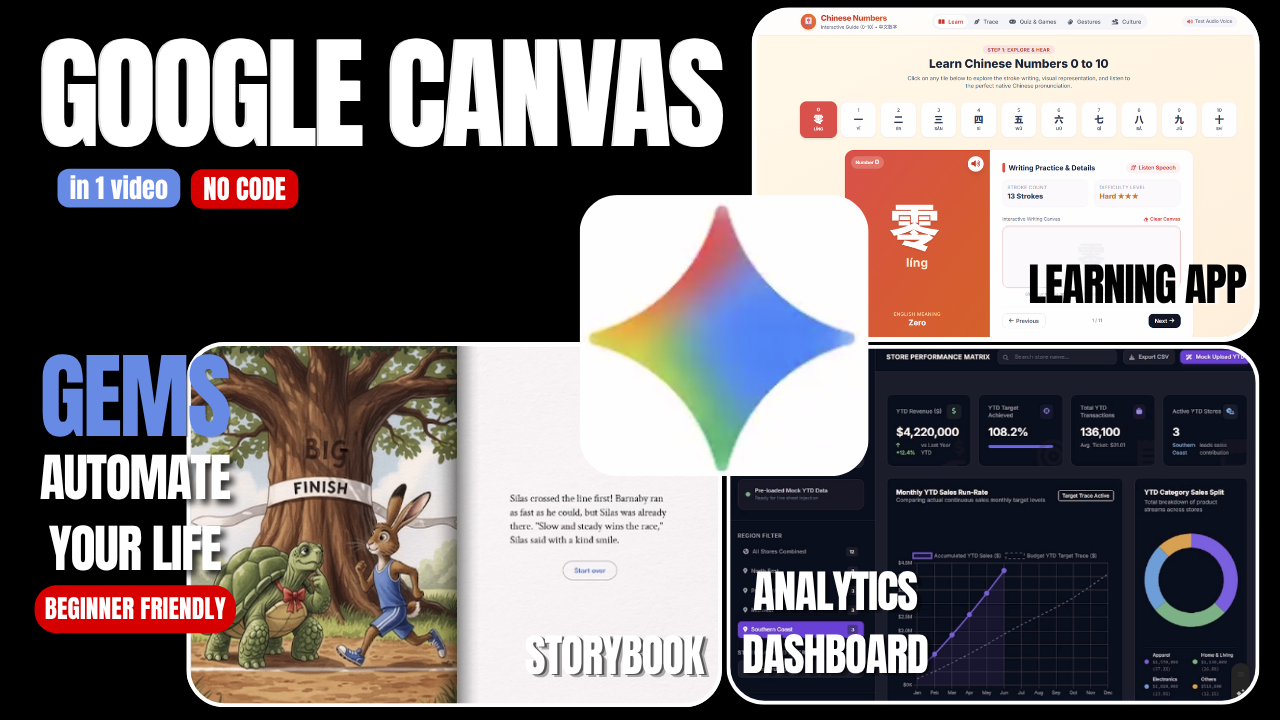
Consider an agency designing localized educational content for a multicultural demographic. You can prompt Gemini inside the Canvas interface: “I need to master Mandarin numerical systems from 0 through 10. Generate a fully interactive visual interface built with tab-switching logic so I can learn dynamically.”
Canvas processes this command by compiling HTML, CSS, and JavaScript elements behind the scenes. It outputs a functional applet right on your screen, complete with clickable tabs and interactive learning modules. If you need to add audio phonetic spellings or track user progress metrics, simply type those requests into the left-hand chat terminal, and Canvas will update the app’s code in real-time.
Plaintext
[User Prompt] ──> "Build an interactive learning interface for Mandarin 0-10 with tab switching."
                        │
                        ▼
[Canvas Engine] ──> Compiles HTML/JS logic behind the scenes
                        │
                        ▼
[Visual Output] ──> Renders a live, clickable mini-app on your right-hand screen panel
Enterprise Use Case 3: Advanced Data Visualization Without Spreadsheets
For data-driven marketers, parsing large data sheets for insights can be incredibly time-consuming. Traditionally, this process requires cleaning dirty files, building pivot tables, and manually drawing charts in Excel or external Business Intelligence tools.
Google Canvas completely streamlines this workflow:
-
Upload Raw Datasets: Attach an unformatted CSV or Excel sheet containing multi-store transactions, traffic logs, or backlink profiles directly into the Canvas chat interface.
-
Issue the Visualization Command: Enter a straightforward prompt: “Generate an interactive executive performance dashboard using this raw dataset.”
-
Analyze Insights instantly: In seconds, Canvas extracts the data and builds an interactive dashboard on your screen. This allows you to visually compare store KPIs, isolate underperforming operational nodes, and filter metrics instantly without ever opening a spreadsheet.
Part 3: The Synergy Workflow – Combining Gems and Canvas for Maximized ROI
The true competitive edge is unlocked when you combine Gemini Gems and Google Canvas into a single, unified enterprise workflow. This integration allows you to build a continuous pipeline where custom automated agents feed data directly into an interactive workspace for final refinement.
┌──────────────────────────┐     Data Flow      ┌──────────────────────────┐
│   1. CUSTOM GEM AGENT    │───────────────────>│    2. GOOGLE CANVAS      │
│                          │                    │                          │
│ • Validates raw incoming │                    │ • Compiles outputs into  │
│   unstructured inputs.   │                    │   interactive workspaces.│
│ • Enforces core brand    │                    │ • Enables granular,      │
│   compliance policies.   │                    │   inline text editing.   │
│ • Normalizes formatting  │                    │ • Generates deployable   │
│   and voice parameters.  │                    │   visual dashboards.     │
└──────────────────────────┘                    └──────────────────────────┘
Step-by-Step Integrated Content Pipeline
Step 1: Input Processing via Custom Gems
Run all incoming raw assets, customer emails, or rough content outlines through your specialized, pre-configured Gem. This step ensures that your data is cleaned, formatted correctly, and aligned with your brand guidelines right from the start.
Step 2: Content Scaling via Canvas Workspace
Take the structured output from your Gem and port it directly into the Canvas workspace. Use the interactive panel to perform deep editing, refine phrasing, and format headers for search visibility.
Step 3: Global Feature Expansion
Use the left-hand command terminal to add advanced features to your project. This could include generating micro-data schemas, translating the text into multiple target languages, or building a visual data dashboard to track your performance metrics.
Strategic Summary: The Enterprise AI Roadmap
| AI Feature | Primary Operational Value | Best Strategic Use Case |
| Gemini Gems | Eliminates prompt repetition by hardcoding your brand’s persona, context, and formatting rules into persistent, automated agents. | Automated customer support, recurring content generation, and brand-voice compliance auditing. |
| Google Canvas | Introduces an interactive side-by-side workspace that replaces static chatbot text with real-time editing controls. | Low-code app creation, interactive data dashboarding, and rapid inline text editing. |
By implementing this integrated workflow, digital enterprises can significantly reduce manual overhead, accelerate content production, and turn raw data into actionable insights faster than ever before. Open your Gemini terminal today, deploy your first custom Gem, and scale your workflows inside Google Canvas.
Watching for more AI guide as following link:
